How to Build an Automated PDF Optimization Pipeline: Architecture Guide
Suppose your system ingests 500,000 PDFs per month. Every one of them needs to be compressed to a consistent target size, validated for structural integrity, and archived to PDF/A compliance. Doing that manually is not possible. Doing it with a tool that requires human input per document is not scalable. What you need is a pipeline.
This post covers three PDF optimization pipeline patterns: simple batch processing, event-driven processing, and compliance-ready archival pipelines. For each, we walk through the architecture, the relevant tools, and the command syntax that makes it work.
The Tools: PDF Checker and PDF Optimizer
Both pipelines described in this post use two tools from Datalogics that are designed to work together. PDF Checker is a diagnostic tool that validates PDF documents before they enter your processing pipeline: it identifies structural errors, unembedded fonts, invalid color spaces, and other issues that would cause downstream failures. PDF Optimizer is the optimization engine that performs compression, color conversion, PDF/A conversion, and other operations based on a JSON profile you define.
PDF Checker is included free with every PDF Optimizer purchase. Running PDF Checker before PDF Optimizer is the right architecture for any production pipeline: you validate first, then optimize, then archive or deliver.
Pattern 1: Simple Batch Processing
The simplest pipeline processes a directory of PDFs on a schedule. A cron job or task scheduler triggers PDF Checker on an input directory, passes the validated files to PDF Optimizer with a defined JSON profile, and writes the output to a delivery or storage directory.

The command structure for PDF Optimizer batch processing is straightforward. You specify the input file or directory, the JSON profile to apply, and the output location. A typical production command looks like this:
pdfoptimizer -i /input/batch/ -p profiles/compressionMedium.json -o /output/compressed/ -r results.json
The -r flag generates a results report for every processed file, giving you a log of input size, output size, operations applied, and any warnings or errors encountered. This report is essential for monitoring pipeline health and auditing optimization outcomes at scale.
For this pattern, the JSON profile is the primary control mechanism. A medium compression profile might downsample color images to 150 DPI, apply JPEG compression at quality 75, and remove embedded thumbnails and JavaScript. A high compression profile might target 96 DPI for screen-only documents with more aggressive recompression. You define the profiles once, store them in version control, and apply them consistently to every document in the pipeline.
Pattern 2: Event-Driven Processing
For systems where documents arrive continuously rather than in scheduled batches, an event-driven architecture is more appropriate. In this pattern, a document upload triggers a processing event that invokes PDF Checker, then PDF Optimizer, and then routes the output to the appropriate destination based on the results.
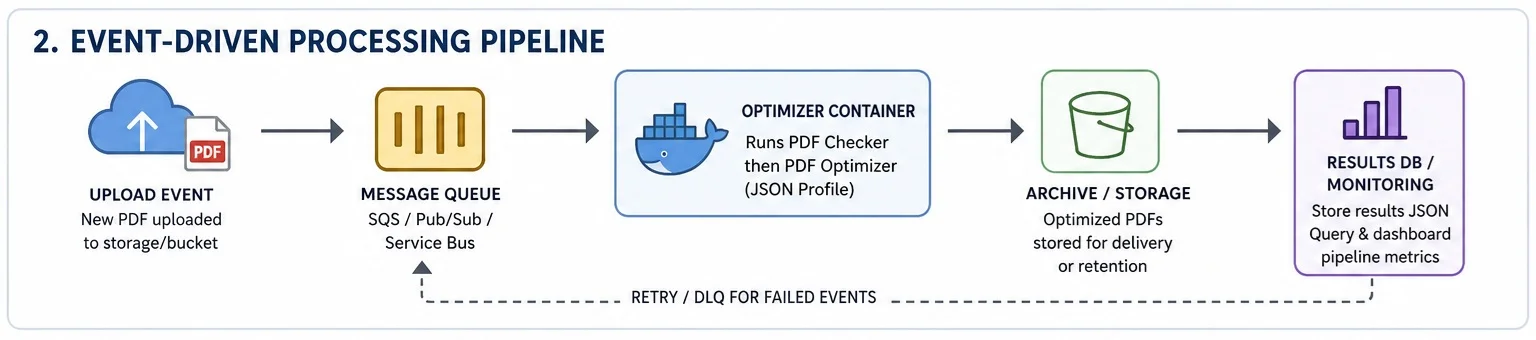
The triggering mechanism depends on your infrastructure. In a cloud environment, you might use an object storage event notification: when a new file lands in a raw documents bucket, it triggers a function or container that runs the processing steps. In an on-premises environment, you might use a file system watcher or a message queue that receives document processing requests.
The key design principle for event-driven pipelines is idempotency: the same document should produce the same output regardless of how many times it is processed. JSON profiles make this straightforward. The same profile applied to the same input document will always produce the same output, which means you can safely retry failed processing events without risking inconsistent results.
In this pattern, the results report from PDF Optimizer is typically written to a database or monitoring system rather than a flat file, enabling you to query optimization outcomes across your entire document inventory. Which documents reduced by more than 50%? Which documents failed validation? Which documents produced warnings? The report data answers these questions at scale.
Pattern 3: Compliance Archival Pipeline
The most sophisticated pipeline pattern combines validation, optimization, and compliance conversion in a single automated workflow. This is the right architecture for organizations that must archive documents to PDF/A for regulatory, legal, or institutional retention requirements.
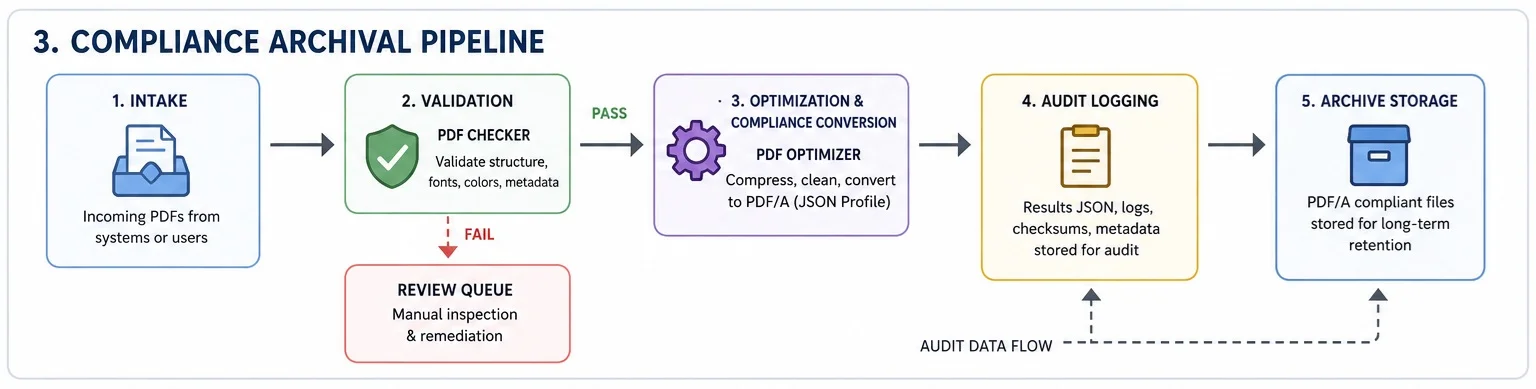
The stages are: intake, validation, optimization and compliance conversion, audit logging, and archive storage. PDF Checker runs at the validation stage and produces a per-document report. Documents that pass validation move to PDF Optimizer, which applies both compression operations and PDF/A conversion in a single pass. Documents that fail validation are routed to a review queue for manual inspection.
The JSON profile for a compliance pipeline looks different from a compression-only profile. Rather than prioritizing aggressive size reduction, it prioritizes compliant output: font subsetting is enabled, JavaScript and XFA are removed, color spaces are explicitly converted to PDF/A-compliant profiles, and transparency is flattened. The output is both smaller and ISO-compliant.
pdfoptimizer -i /input/documents/ -p profiles/PDFA-3u.json -o /archive/pdfa/ -r /logs/archive_results.json
For workflows that need to produce both a compressed delivery version and a compliant archive version of the same document, you can run PDF Optimizer twice with two different profiles. Because the processing is automated and the profiles are predefined, the added step adds almost no operational overhead.
Monitoring and Reporting
Any production pipeline needs observability. PDF Optimizer's results output provides the raw data: input size, output size, compression ratio, operations applied, and any errors or warnings per document. At scale, you want this data flowing into a monitoring system, not sitting in flat log files.
A practical approach is to parse the results JSON after each batch run, aggregate the key metrics, and push them to whatever monitoring or logging infrastructure your team uses. Track average compression ratio over time, validation failure rate, and processing throughput. Anomalies in any of these metrics, such as a sudden drop in compression ratio or a spike in validation failures, indicate changes in your incoming document quality that need investigation.
Getting Started
Get a free trial of PDF Optimizer and start with your highest-volume document type, define a profile tuned for that content, and run a sample batch to test for your workflows.