How to Use Adobe PDF Library: Java with Maven in IntelliJ
If you're a developer who needs entensive PDF software that runs well in Java and can be used with a Maven repository, we have a solution for you. Adobe PDF Library (APDFL) provides enterprise-grade PDF manipulation that goes beyond basic PDF libraries. It offers comprehensive functionality for creating, editing, extracting content from, and transforming PDF documents programmatically. This is particularly valuable for applications that need to handle complex PDF operations like form filling, annotation management, or document merging.
Unlike open-source alternatives, APDFL is built on Adobe's core PDF technology and is designed for high-volume production environments. It provides consistent rendering, better compatibility with various PDF specifications, and more robust error handling, which is critical for enterprise applications where PDF processing failures could impact business operations.
Why use Adobe PDF Library with Maven?
Using Maven for dependency management simplifies the build process and ensures consistent library versions across development teams. Maven's dependency resolution handles transitive dependencies automatically, making it easier to maintain and update the library. The structured project layout also facilitates continuous integration and deployment workflows.
IntelliJ Development Advantages
IntelliJ IDEA provides excellent Maven support with features like automatic dependency downloading, integrated build tools, and intelligent code completion for library APIs. The IDE's debugging capabilities are particularly useful when working with complex PDF processing workflows, allowing developers to step through code and inspect PDF objects during development.
This combination is especially valuable for applications requiring document automation (like report generation), content management systems, legal document processing, or any enterprise application where PDF manipulation is a core requirement. The professional support and documentation that come with commercial libraries like APDFL can significantly reduce development time compared to building similar functionality from scratch. The Maven + IntelliJ setup also facilitates team collaboration and maintains consistency across different development environments, which is crucial for complex PDF processing projects.
With all of that in mind, we're going to show you how to get started with Adobe PDF Library's Java interface using our Maven package in IntelliJ.
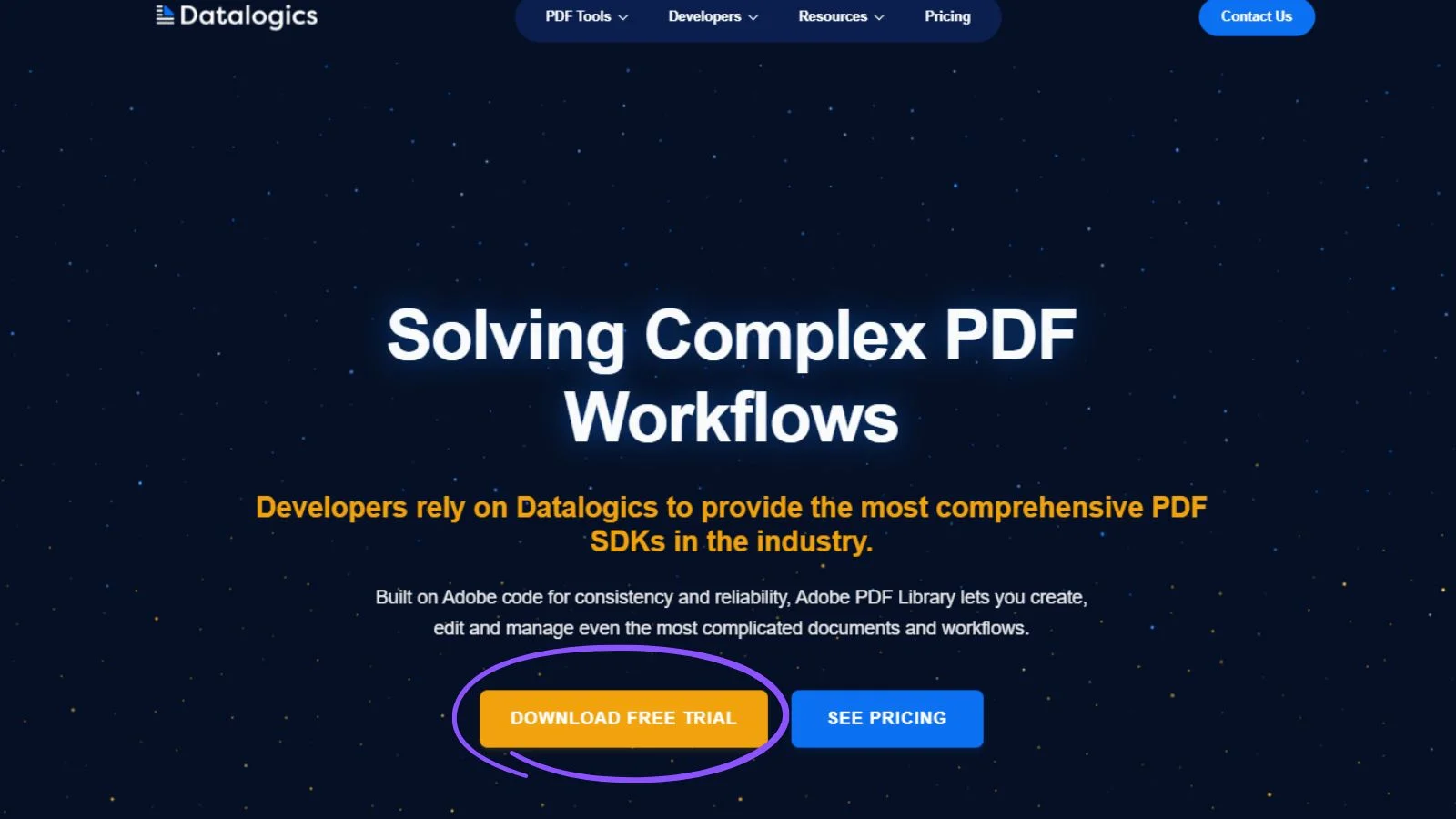
Step 1: Open up the Datalogics homepage and click on the download button.
Step 2: Fill out the form and hit submit.
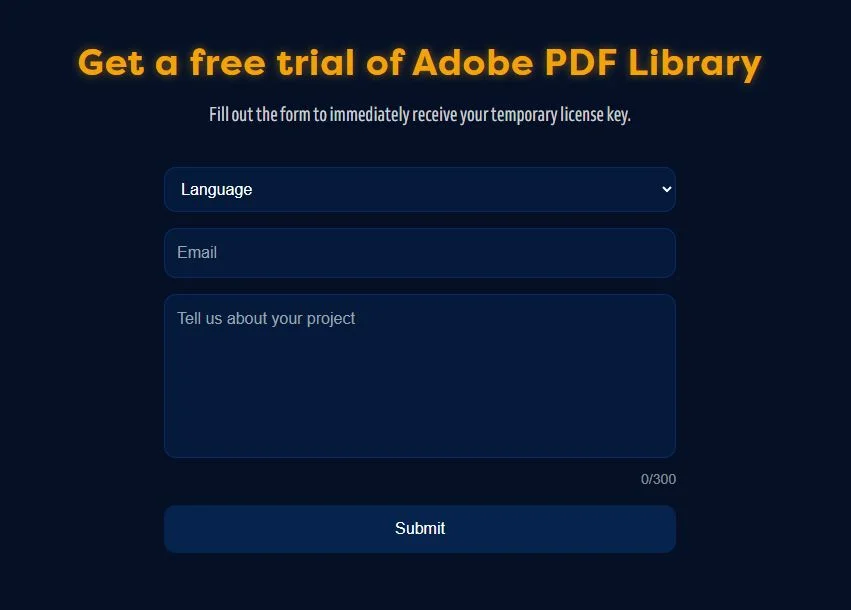
You'll be given a license key, which you'll want to save for later. You can also go to GitHub and see our sample application repositories, including Maven.
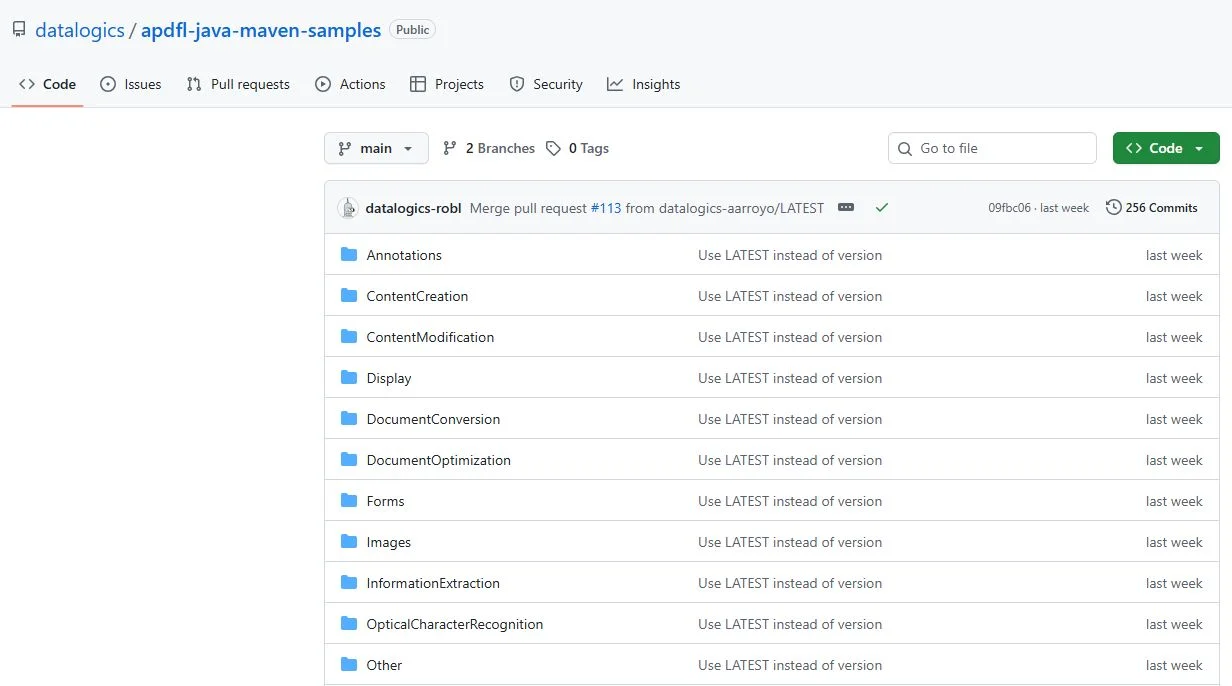
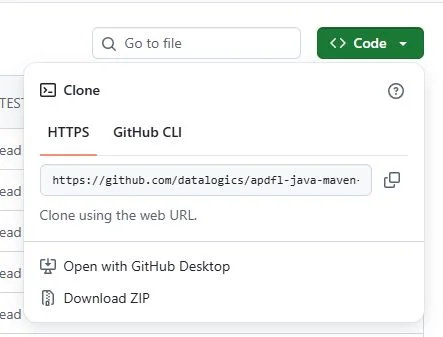
Step 3: Clone the repo.
Copy the clone link from GitHub and run a git clone.
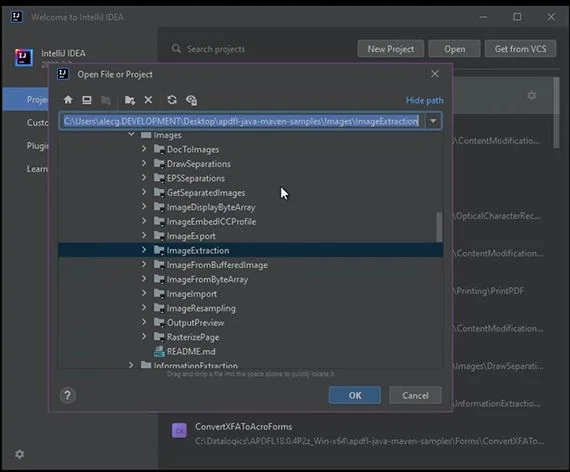
Once that runs, you can open up IntelliJ and find the project. The example we'll use is the image extraction application - a simple application that does exactly what it says it does. It scans a PDF for images and extracts them out to their own individual files.
Here we have a sample input file already specified (ducky.pdf).
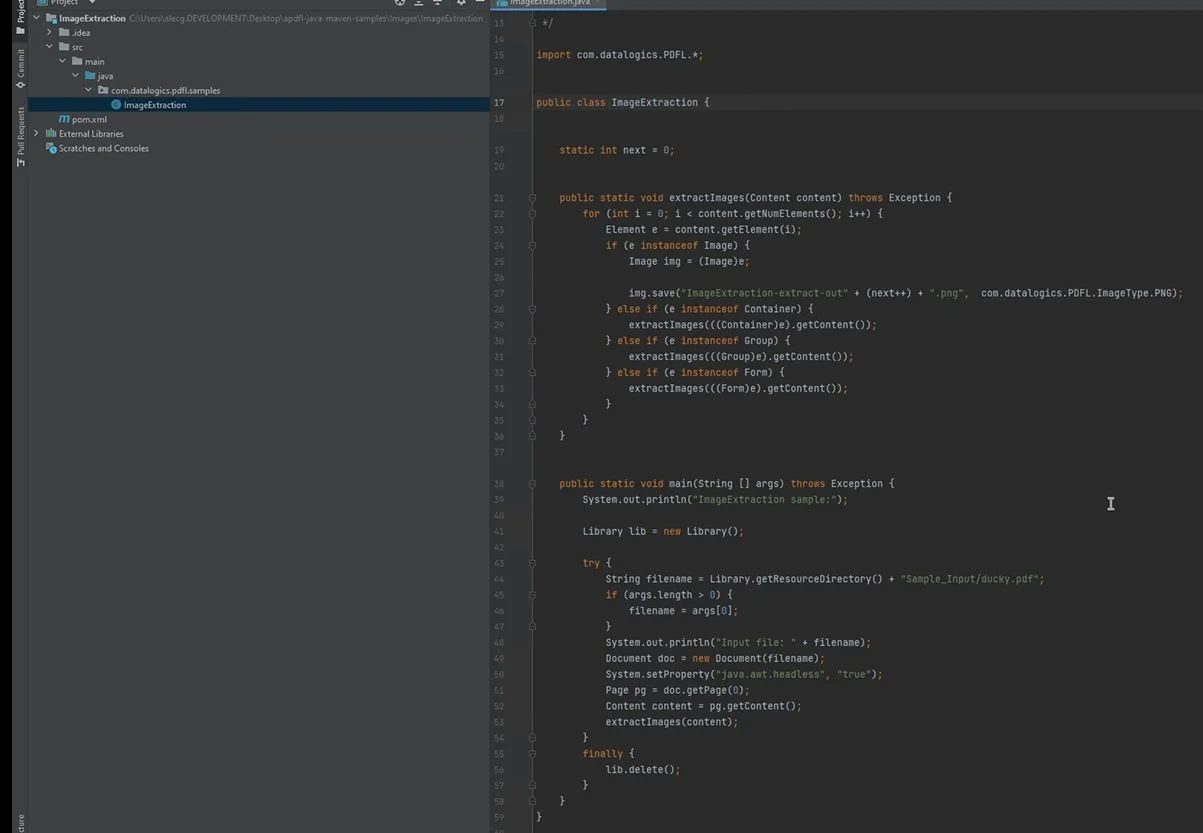
Step 4: Hit the run button.
What it's going to do is pull down the package from Maven Central. This could take a minute, but at a certain point it's going to ask you for that license key that you saved earlier.
Step 5: Enter the license key.
Put in that license key when it prompts you to enter it and the program should finish running.
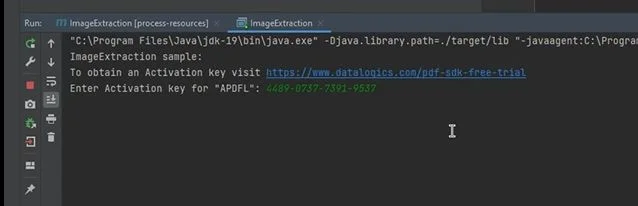
Check to see if it runs successfully by checking for a message that the license has been activated.
You should then be able to see the extracted image.
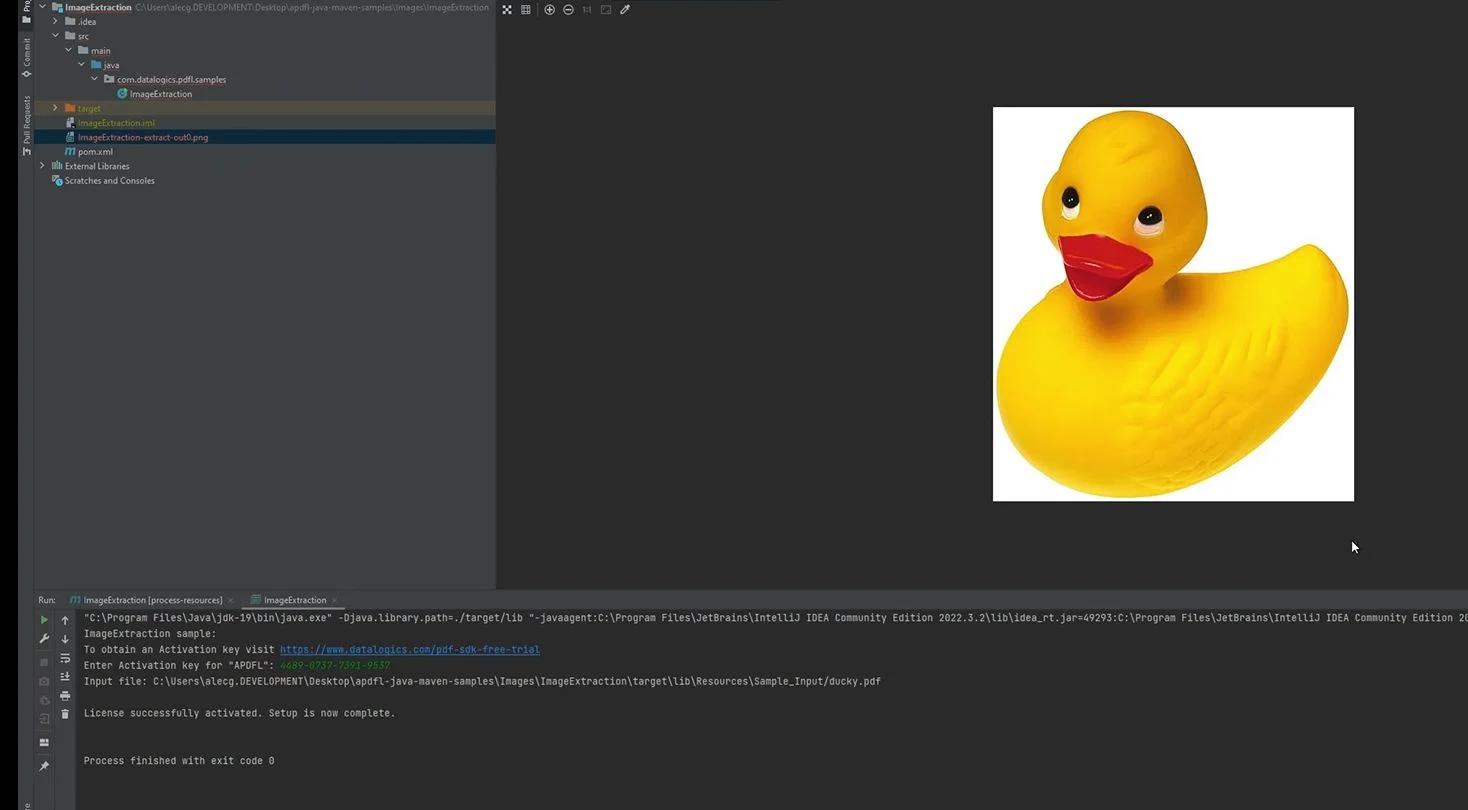
And there you have it!
All of our sample applications can be run in this very simple way. If you have any questions on how to use the applications, feel free to contact our support team for more information. We look forward to seeing what you'll create with Adobe PDF Library!